How to Migrate an Existing Number to WhatsApp Business API: Step-by-Step Guide
Migrating an existing phone number to the WhatsApp Business API (WABA) allows businesses to connect their number to a WhatsApp API platform for automated messaging, customer support, and marketing campaigns.
Follow these steps to prepare and migrate your existing number.
Prerequisites
- Access to your Meta Business Portfolio
- Access to WhatsApp Manager
- Access to the existing WhatsApp phone number
- Required business and account details
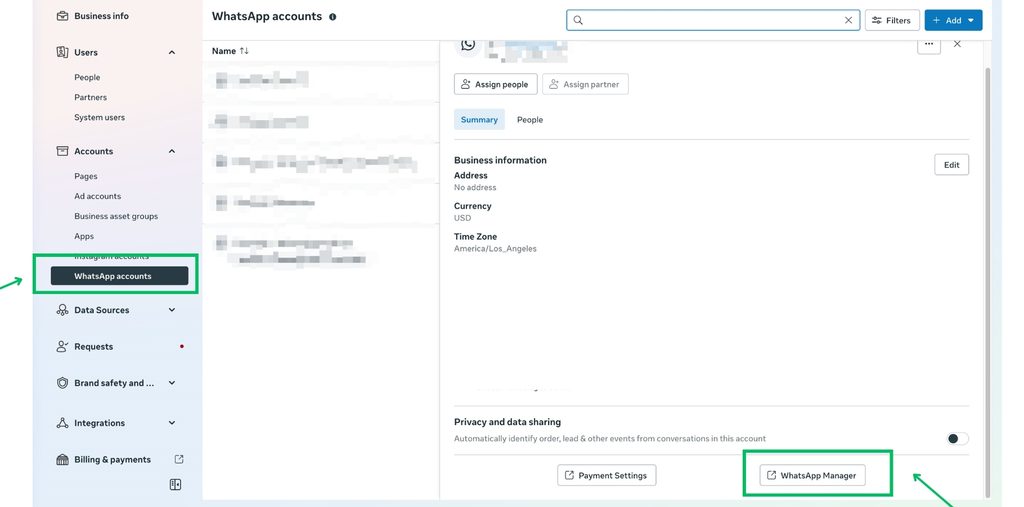
Step 1: Open WhatsApp Manager
Log in to your Meta Business Portfolio and open WhatsApp Manager.
Step 2: Select Your Phone Number & Turn Off Two-Step Verification
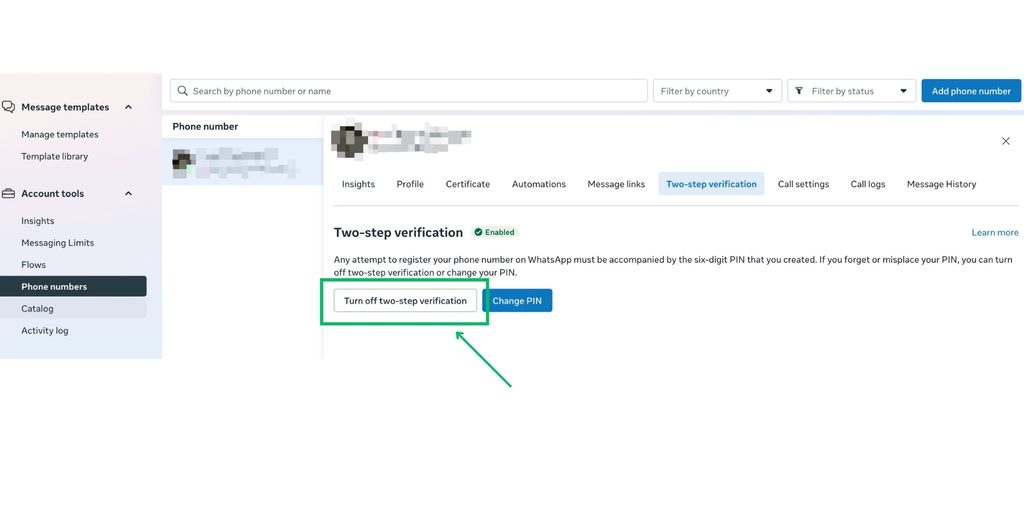
Navigate to Phone Numbers and select the number you want to migrate. Open the selected number’s settings and turn off Two-Step Verification (2FA).
Step 4: Wait for 15 Minutes
After disabling two-step verification, wait 15 minutes before proceeding with the migration.
Step 5: Start Registration
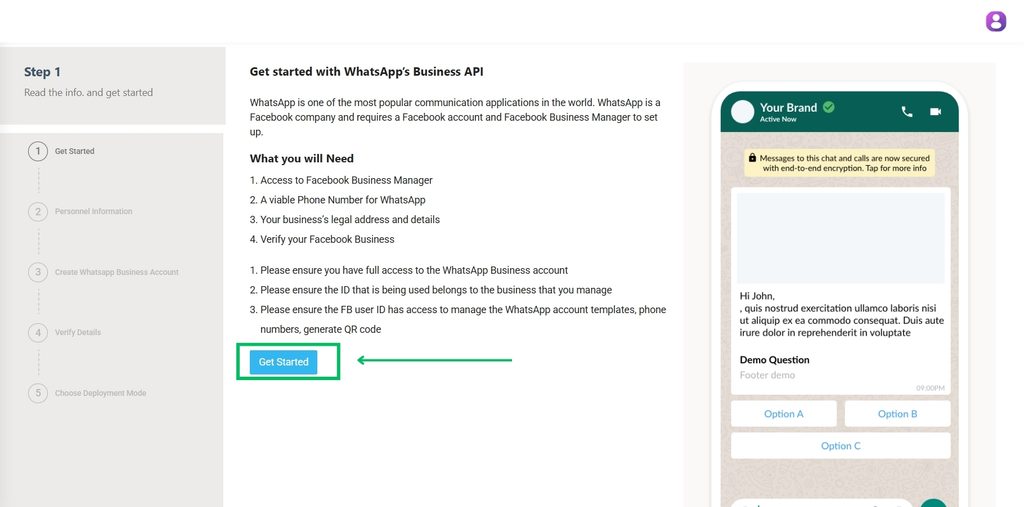
Open your WhatsApp Business API onboarding platform and click Get Started.
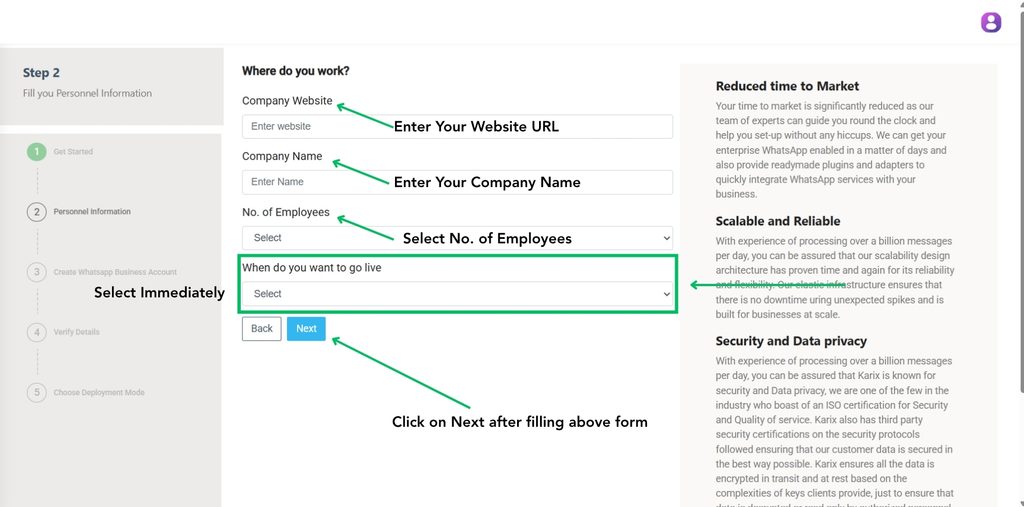
Step 6: Enter Business Details
Fill in your website URL, business name, and number of employees.
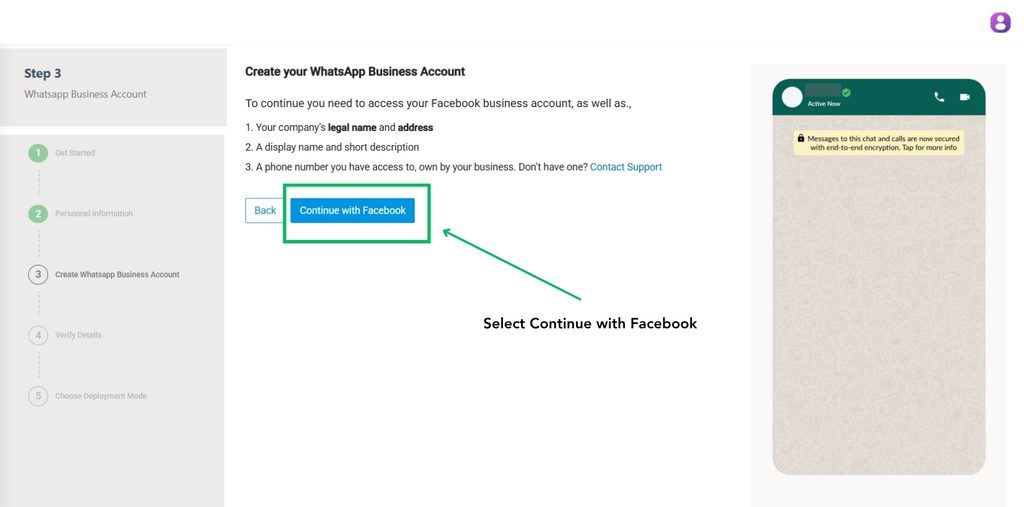
Step 7: Connect Facebook
Click Continue with Facebook and log in to the Facebook account that has access to your Meta Business Portfolio.
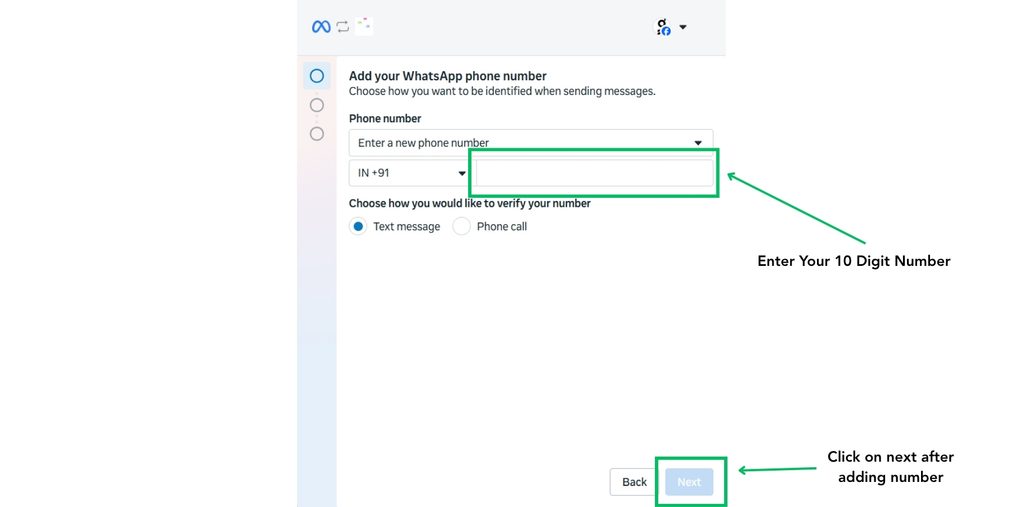
Step 8: Add the Existing Number
Select the correct country code and enter the existing phone number you want to migrate.
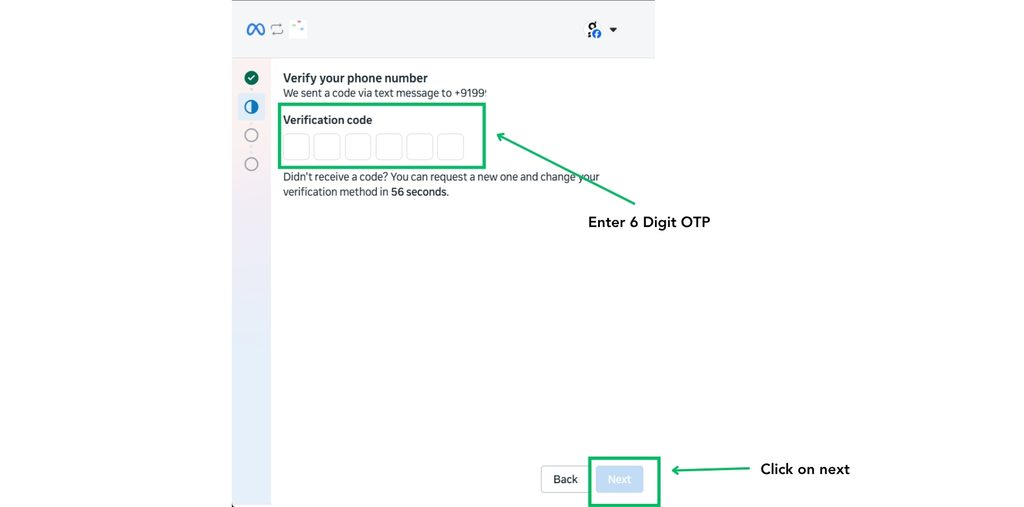
Step 9: Verify OTP
Choose the available verification method, receive the OTP, and enter it to verify the number.
Step 12: Finish Process
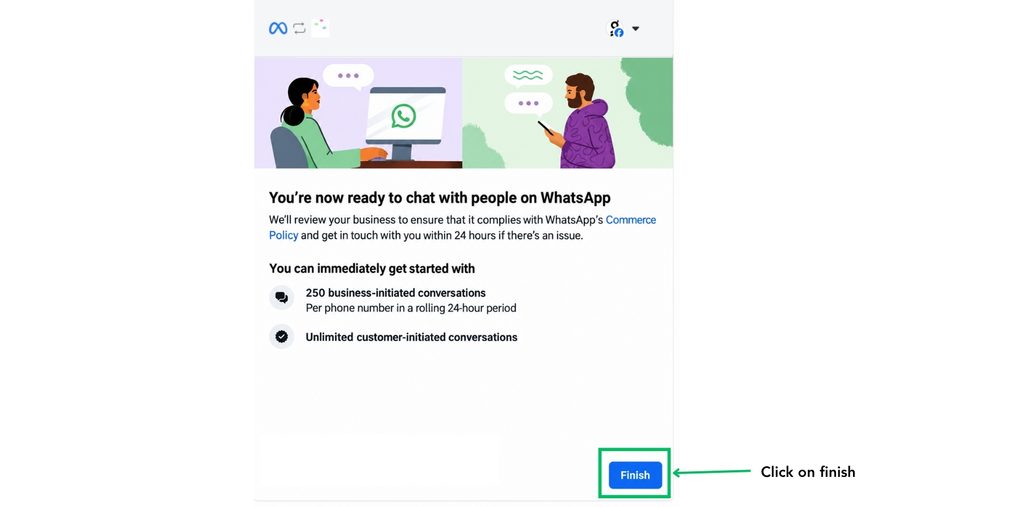
Check all details and click finish to complete the onboarding process.